

In this article, we will discuss about how to show bootstrap modal popup on button click using jQuery with example and live demo.
Write the code as shown below-
HTML:
After that, attach the jquery library link, bootstrap jquery link and bootstrap css link in head part as shown below-
JS:
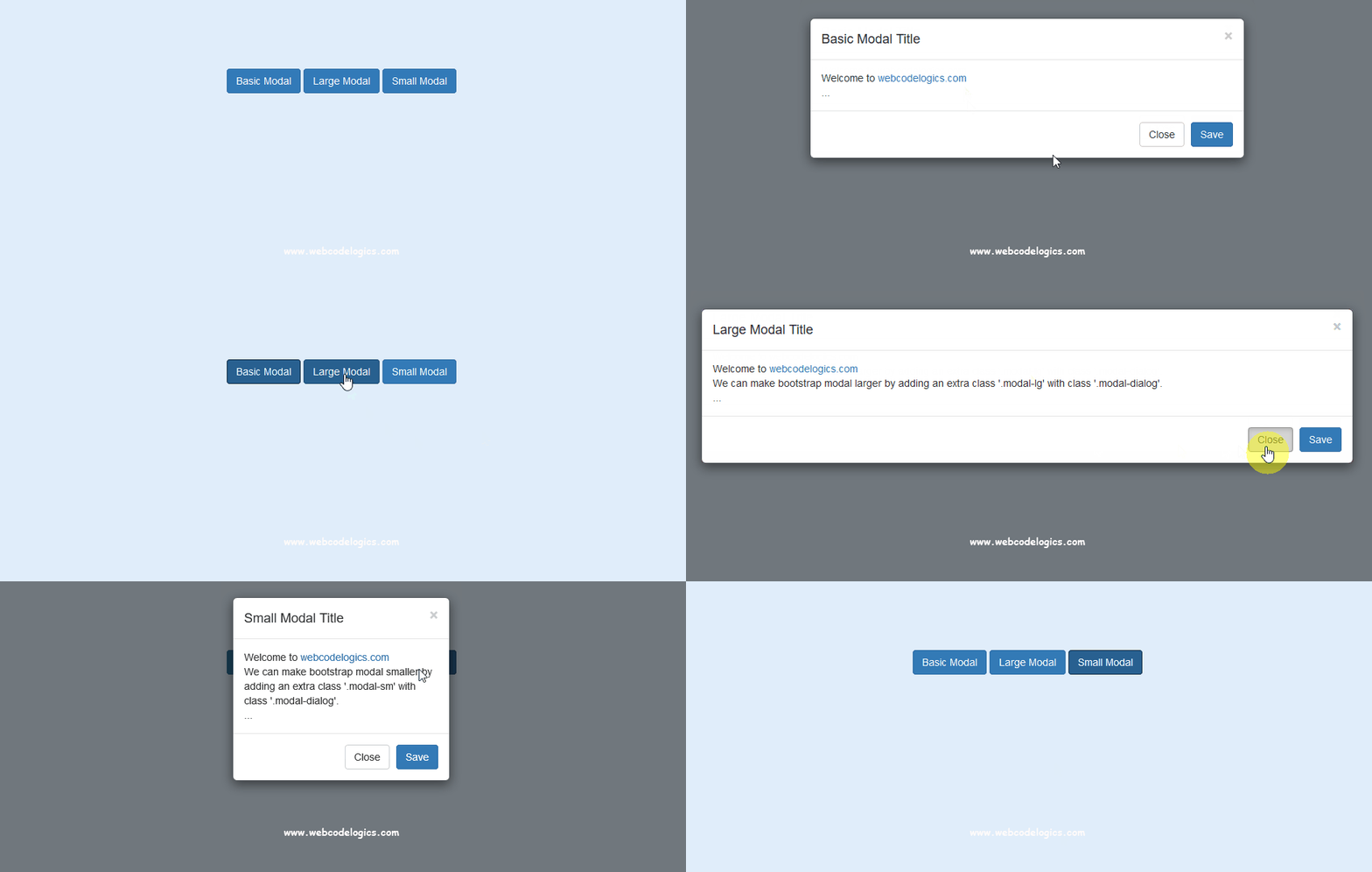
Preview:

Live Demo:
HTML:
<body style="background: #E0EDFA; margin-top: 100px;">
<div style="text-align: center; width: 100%;">
<!--Button to Show Basic modal -->
<button type="button" class="btn btn-primary" data-toggle="modal" data-target="#basicModalPopup">Basic Modal</button>
<!--Button to Show Large modal -->
<button type="button" class="btn btn-primary" data-toggle="modal" data-target="#largeModalPopup">Large Modal</button>
<!--Button to Show Small modal -->
<button type="button" class="btn btn-primary" data-toggle="modal" data-target="#smallModalPopup">Small Modal</button>
</div>
<!-- Basic Bootstrap Modal Popup -->
<div id="basicModalPopup" class="modal fade" tabindex="-1" role="dialog" aria-labelledby="basicModalLabel">
<div class="modal-dialog" role="document">
<div class="modal-content">
<div class="modal-header">
<button type="button" class="close" data-dismiss="modal" aria-label="Close"><span aria-hidden="true">×</span></button>
<h4 class="modal-title" id="basicModalLabel">Basic Modal Title</h4>
</div>
<div class="modal-body">
Welcome to <a href="http://webcodelogics.com" target="_blank">webcodelogics.com</a><br/>
...
</div>
<div class="modal-footer">
<button type="button" class="btn btn-default" data-dismiss="modal">Close</button>
<button type="button" class="btn btn-primary">Save</button>
</div>
</div>
</div>
</div>
<!-- Large Bootstrap Modal Popup -->
<div id="largeModalPopup" class="modal fade" tabindex="-1" role="dialog" aria-labelledby="largeModalLabel">
<div class="modal-dialog modal-lg" role="document">
<div class="modal-content">
<div class="modal-header">
<button type="button" class="close" data-dismiss="modal" aria-label="Close"><span aria-hidden="true">×</span></button>
<h4 class="modal-title" id="largeModalLabel">Large Modal Title</h4>
</div>
<div class="modal-body">
Welcome to <a href="http://webcodelogics.com" target="_blank">webcodelogics.com</a><br/>
We can make bootstrap modal larger by adding an extra class '.modal-lg' with class '.modal-dialog'.<br/>
...
</div>
<div class="modal-footer">
<button type="button" class="btn btn-default" data-dismiss="modal">Close</button>
<button type="button" class="btn btn-primary">Save</button>
</div>
</div>
</div>
</div>
<!-- Small Bootstrap Modal Popup -->
<div id="smallModalPopup" class="modal fade" tabindex="-1" role="dialog" aria-labelledby="smallModalLabel">
<div class="modal-dialog modal-sm" role="document">
<div class="modal-content">
<div class="modal-header">
<button type="button" class="close" data-dismiss="modal" aria-label="Close"><span aria-hidden="true">×</span></button>
<h4 class="modal-title" id="smallModalLabel">Small Modal Title</h4>
</div>
<div class="modal-body">
Welcome to <a href="http://webcodelogics.com" target="_blank">webcodelogics.com</a><br/>
We can make bootstrap modal smaller by adding an extra class '.modal-sm' with class '.modal-dialog'.<br/>
...
</div>
<div class="modal-footer">
<button type="button" class="btn btn-default" data-dismiss="modal">Close</button>
<button type="button" class="btn btn-primary">Save</button>
</div>
</div>
</div>
</div>
</body>
After that, attach the jquery library link, bootstrap jquery link and bootstrap css link in head part as shown below-
JS:
<head>
    <title>Show Bootstrap Modal Popup on Button Click in jQuery with Example</title>
    <!-- jQuery Library Link -->
    <script src="https://code.jquery.com/jquery-3.1.0.min.js" type="text/javascript"></script>
    <!-- Bootstrap compiled and minified CSS Link -->
    <link rel="stylesheet" href="https://maxcdn.bootstrapcdn.com/bootstrap/3.3.7/css/bootstrap.min.css" />
    <!-- Bootstrap compiled and minified JavaScript Link -->
    <script src="https://maxcdn.bootstrapcdn.com/bootstrap/3.3.7/js/bootstrap.min.js"></script>
</head>
Now save the file and run on browser to view the bootstrap modal popup result.Preview:
Live Demo:


