Improve your skills

January 18, 2017

How to Blink or Flashing Text or Image Using Simple CSS3 with Example


Introduction:
In this article, we will learn about How to blink or flashing any text or image using simple CSS3 animation effect with example. or How to use animation effect in CSS3 to blink or flashing any text or image. 

The preview are shown as below-

How to Blink or Flashing Text or Image Using Simple CSS3 with Example


To blink/flash text or image write the code as shown below-

HTML:
<!DOCTYPE html>
<html xmlns="http://www.w3.org/1999/xhtml">
<head>
    <title>How to Blink or Flashing Text or Image Using Simple CSS3 with Example | webcodelogics.com</title>
    <style>
        .blink {
            -webkit-animation-name: blinker;
            -webkit-animation-duration: 1s;
            -webkit-animation-timing-function: linear;
            -webkit-animation-iteration-count: infinite;
            -moz-animation-name: blinker;
            -moz-animation-duration: 1s;
            -moz-animation-timing-function: linear;
            -moz-animation-iteration-count: infinite;
            animation-name: blinker;
            animation-duration: 1s;
            animation-timing-function: linear;
            animation-iteration-count: infinite;
        }

        @-moz-keyframes blinker {
            0% { opacity: 1.0; } 
            50% { opacity: 0.0; } 
            100% { opacity: 1.0; }
        }

        @-webkit-keyframes blinker {
            0% { opacity: 1.0; }
            50% { opacity: 0.0; }
            100% { opacity: 1.0; }
        }

        @keyframes blinker {
            0% { opacity: 1.0; } 
            50% { opacity: 0.0; } 
            100% { opacity: 1.0; }
        }
        
        .block { text-align: center; width: 100%; }
        .block span{ font-size:25px; font-family:Arial; }
        .block img{ vertical-align: middle; margin-right:25px; }
    </style>
</head>
<body style="background: #E0EDFA;">
    <div class="block">
        <img src="http://webcodelogics.com/Images/logo.png" class="blink" alt="webcodelogics.com" />
        <br />
        <span class="blink">webcodelogics.com</span>
    </div>
</body>
</html>


Now save the code and run on browser to view the blink/flash text animation effect.

Demo:

How to Blink or Flashing Text or Image Using Simple CSS3 with Example webcodelogics.com


January 10, 2017

Create Animated Pie Chart Using CSS3 and Simple jQuery with Example


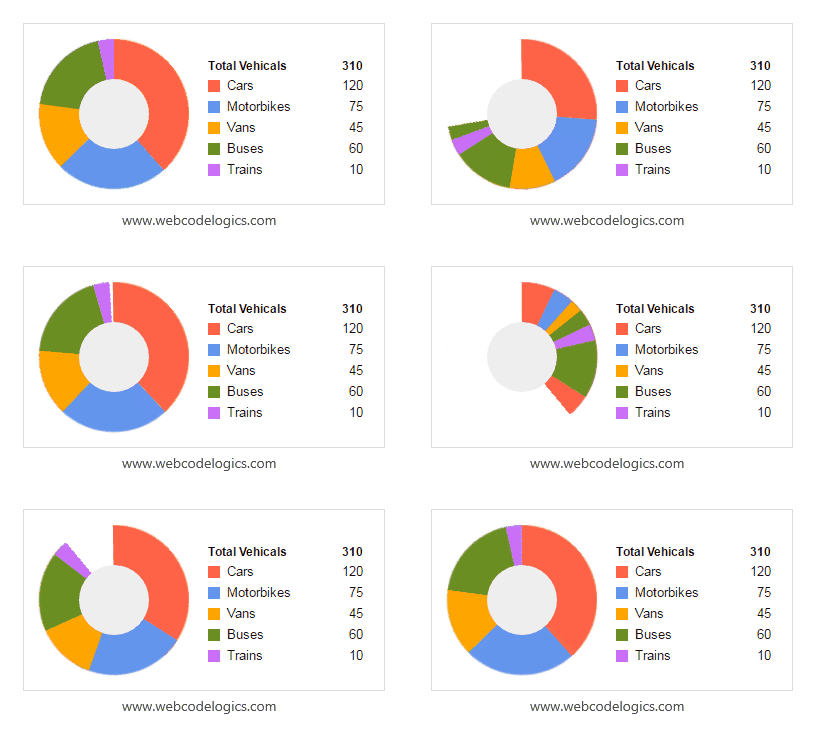
In this article, we will learn about how to create animated pie chart using css3 and simple jQuery with example and live demo.

The preview are shown as below-

create-animated-pie-chart-using-css3-and-simple-jquery-with-example | webcodelogics.com


To create animated pie chart write the code as shown below-

HTML:
<!DOCTYPE html>
<html xmlns="http://www.w3.org/1999/xhtml">
<head>
    <title>Create Animated Pie Chart Using CSS3 and Simple jQuery with Example | webcodelogics.com</title>
    <!-- jQuery Library Link -->
    <script src="https://code.jquery.com/jquery-3.1.0.min.js" type="text/javascript"></script>
    <style>
        .circular_chart_main {
            width: 330px;
            margin: 100px auto;
            border: 1px solid #ddd;
            font-family: Arial;
            padding: 15px;
        }

        .circular_chart_main h4.head {
            border-left: medium none;
            font-size: 12px;
            font-weight: bold;
            margin-bottom: 7px;
        }

        .circular_chart_main h4.head span {
            float: right;
        }

        @keyframes bake-graph {
            from {
                transform: rotate(0deg) translate3d(0,0,0);
            }
        }

        .chart {
            display: inline-block;
            vertical-align: middle;
        }

        .graph {
            height: 150px;
            width: 150px;
            margin-right: 15px;
            position: relative;
        }

        .graph::before {
            content: "";
            display: block;
            position: absolute;
            z-index: 1;
            width: 70px;
            height: 70px;
            background: #EEE;
            border-radius: 50%;
            top: 40px;
            left: 40px;
        }

        .slice {
            position: absolute;
            width: 150px;
            height: 150px;
            clip: rect(0px, 150px, 150px, 75px);
            animation: bake-graph 1s;
            color: #333;
        }

        .slice span {
            display: block;
            position: absolute;
            top: 0;
            left: 0;
            background-color: black;
            width: 150px;
            height: 150px;
            border-radius: 50%;
            clip: rect(0px, 150px, 150px, 75px);
        }

        .legend {
            list-style-type: none;
            padding: 0;
            margin: 0;
            font-size: 13px;
            width: 155px;
        }

        .legend li {
            line-height: 12px;
            height: 12px;
            margin-bottom: 9px;
            padding-left: 7px;
            border-left: 12px solid #ddd;
        }

        .legend em {
            font-style: normal;
        }

        .legend span {
            float: right;
        }
    </style>
    <script>
        $(document).ready(function () {
            createGraph(".circular_chart_main .chart .legend", ".circular_chart_main .chart.graph");
        });

        function createGraph(dataElement, graphElement) {
            var listData = [];
            $(dataElement + " span").each(function () {
                listData.push(Number($(this).html()));
            });
            var listTotal = 0;
            for (var i = 0; i < listData.length; i++) {
                listTotal += listData[i];
            }
            var offset = 0;
            var color = ["#FF6347", "#6495ED", "#FFA500", "#6B8E23", "#CA6FF8"];
            for (var i = 0; i < listData.length; i++) {
                var size = sliceSize(listData[i], listTotal);
                iterateSlices(size, graphElement, offset, i, 0, color[i]);
                $(dataElement + " li:nth-child(" + (i + 1) + ")").css("border-color", color[i]);
                offset += size;
            }
        }

        function sliceSize(dataNum, dataTotal) {
            return (dataNum / dataTotal) * 360;
        }

        function addSlice(sliceSize, graphElement, offset, sliceID, color) {
            $(graphElement).append("<div class='slice " + sliceID + "'><span></span></div>");
            var offset = offset - 1;
            var sizeRotation = -179 + sliceSize;
            $(graphElement + " ." + sliceID).css({
                "transform": "rotate(" + offset + "deg) translate3d(0,0,0)"
            });
            $(graphElement + " ." + sliceID + " span").css({
                "transform": "rotate(" + sizeRotation + "deg) translate3d(0,0,0)",
                "background-color": color
            });
        }

        function iterateSlices(sliceSize, graphElement, offset, dataCount, sliceCount, color) {
            var sliceID = "s" + dataCount + "-" + sliceCount;
            var maxSize = 179;
            if (sliceSize <= maxSize) {
                addSlice(sliceSize, graphElement, offset, sliceID, color);
            } else {
                addSlice(maxSize, graphElement, offset, sliceID, color);
                iterateSlices(sliceSize - maxSize, graphElement, offset + maxSize, dataCount, sliceCount + 1, color);
            }
        }

    </script>
</head>
<body>
    <div class="circular_chart_main">
        <div class="chart graph"></div>
        <div class="chart">
            <h4 class="head">Total Vehicals <span>310</span></h4>
            <ul class="legend">
                <li><em>Cars </em><span>120</span></li>
                <li><em>Motorbikes </em><span>75</span></li>
                <li><em>Vans </em><span>45</span></li>
                <li><em>Buses </em><span>60</span></li>
                <li><em>Trains </em><span>10</span></li>
            </ul>
        </div>
    </div>
</body>
</html>


Now save the file and run on browser to view the animated pie chart.

Live Demo:

Total Vehicals 310

  • Cars 120
  • Motorbikes 75
  • Vans 45
  • Buses 60
  • Trains 10


January 04, 2017

Pure CSS / CSS3 Text Typing Animation Effect with Example


In this article, we will discuss about how to implement text typing animation effect on our web page using CSS/CSS3 with example.


Write the code as shown below-

HTML:
<!DOCTYPE html>
<html xmlns="http://www.w3.org/1999/xhtml">
<head>
    <title>Pure CSS / CSS3 Text Typing Animation Effect with Example</title>
    <style>
        * {
            box-sizing: inherit;
        }

        body {
            background-color: #2a2a28;
            font-family: "Fira Mono", monospace;
        }

        .typewriter, .item {
            height: 30px;
            display: block;
        }

        .typewriter {
            overflow: hidden;
            color: lime;
        }

        .item {
            position: relative;
            font-size: 17px;
            animation: line_change_animation 18s steps(3) infinite;
        }

        .inner_item {
            display: inline-block;
            position: relative;
            line-height: 1;
        }

        .inner_item:after {
            content: "";
            position: absolute;
            top: -1px;
            right: 0;
            bottom: -2px;
            left: 0;
            border-left: 1px solid lime;
            background-color: #2a2a28;
            animation: typing_animation 3s steps(36) infinite alternate;
        }

        /* The typing animation effect */
        @keyframes typing_animation {
            0% {
                left: 0;
                margin-right: auto;
            }

            100% {
                left: 100%;
                margin-left: .6em;
                margin-right: -.6em;
            }
        }

        /* The line change animation effect */
        @keyframes line_change_animation {
            0% {
                top: 0;
            }

            100% {
                top: -90px;
            }
        }
    </style>
</head>
<body>
    <div class="typewriter">
        <span class="item"><span class="inner_item">Simple typing animation with css3.</span></span>
        <span class="item"><span class="inner_item">Created by www.webcodelogics.com :)</span></span>
        <span class="item"><span class="inner_item">Like & Share with your friends...</span></span>
    </div>
</body>
</html>


Now save the file and run on browser to view the text typing animation effect.

Preview:
pure-css-css3-text-typing-animation-effect-with-example


Live Demo:

Simple typing animation with css3. Created by www.webcodelogics.com :) Like & Share with your friends...


December 20, 2016

Show Bootstrap Modal Popup on Button Click in jQuery with Example


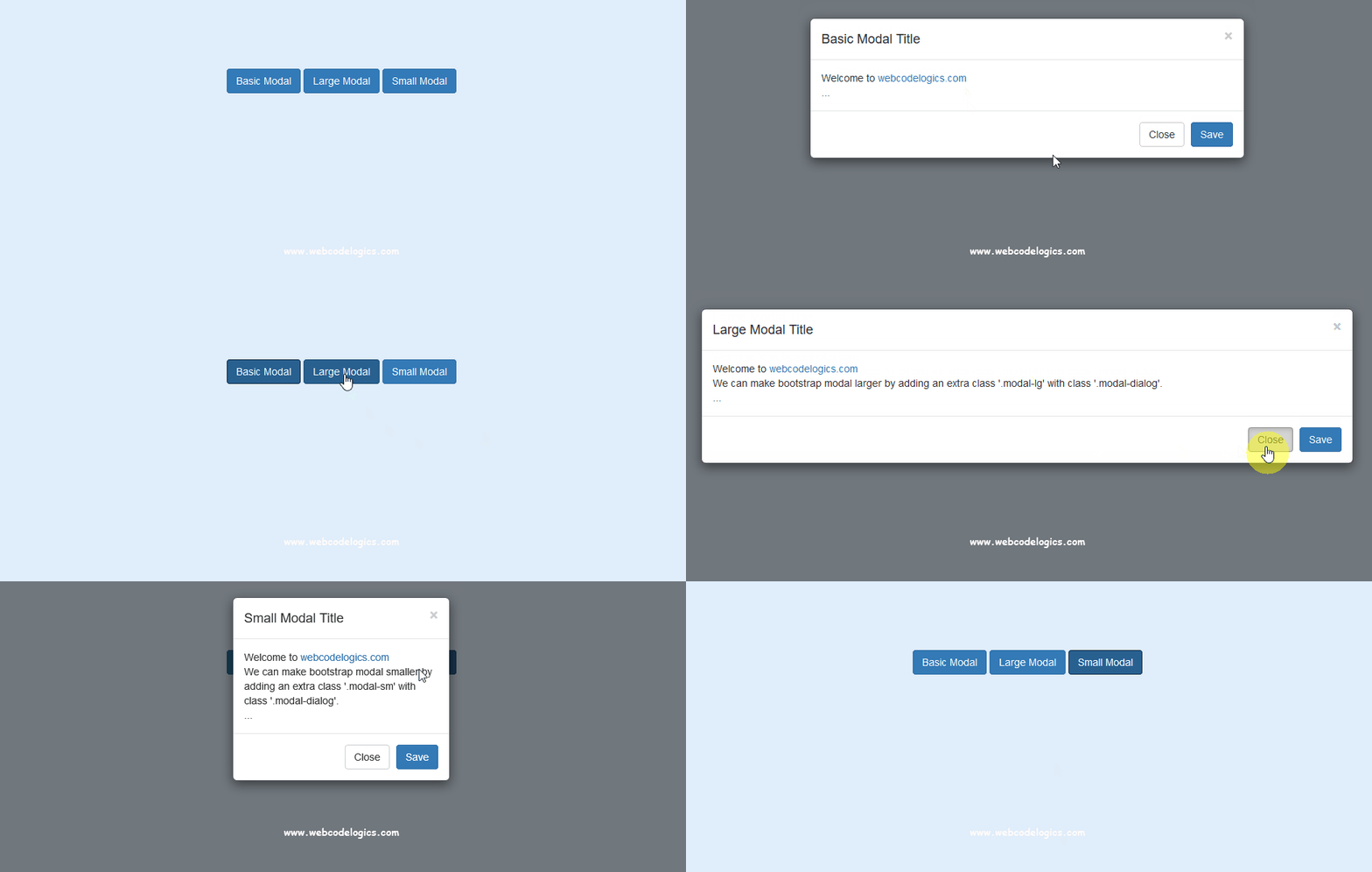
In this article, we will discuss about how to  show bootstrap modal popup on button click using jQuery with example and live demo.

Write the code as shown below-

HTML:
<body style="background: #E0EDFA; margin-top: 100px;">

    <div style="text-align: center; width: 100%;">
        <!--Button to Show Basic modal -->
        <button type="button" class="btn btn-primary" data-toggle="modal" data-target="#basicModalPopup">Basic Modal</button>
        <!--Button to Show Large modal -->
        <button type="button" class="btn btn-primary" data-toggle="modal" data-target="#largeModalPopup">Large Modal</button>
        <!--Button to Show Small modal -->
        <button type="button" class="btn btn-primary" data-toggle="modal" data-target="#smallModalPopup">Small Modal</button>
    </div>

    <!-- Basic Bootstrap Modal Popup -->
    <div id="basicModalPopup" class="modal fade" tabindex="-1" role="dialog" aria-labelledby="basicModalLabel">
        <div class="modal-dialog" role="document">
            <div class="modal-content">
                <div class="modal-header">
                    <button type="button" class="close" data-dismiss="modal" aria-label="Close"><span aria-hidden="true">&times;</span></button>
                    <h4 class="modal-title" id="basicModalLabel">Basic Modal Title</h4>
                </div>
                <div class="modal-body">
                    Welcome to <a href="http://webcodelogics.com" target="_blank">webcodelogics.com</a><br/>
                    
                    ...
                </div>
                <div class="modal-footer">
                    <button type="button" class="btn btn-default" data-dismiss="modal">Close</button>
                    <button type="button" class="btn btn-primary">Save</button>
                </div>
            </div>
        </div>
    </div>

    <!-- Large Bootstrap Modal Popup -->
    <div id="largeModalPopup" class="modal fade" tabindex="-1" role="dialog" aria-labelledby="largeModalLabel">
        <div class="modal-dialog modal-lg" role="document">
            <div class="modal-content">
                <div class="modal-header">
                    <button type="button" class="close" data-dismiss="modal" aria-label="Close"><span aria-hidden="true">&times;</span></button>
                    <h4 class="modal-title" id="largeModalLabel">Large Modal Title</h4>
                </div>
                <div class="modal-body">
                    Welcome to <a href="http://webcodelogics.com" target="_blank">webcodelogics.com</a><br/>
                    We can make bootstrap modal larger by adding an extra class '.modal-lg' with class '.modal-dialog'.<br/>
                    ...
                </div>
                <div class="modal-footer">
                    <button type="button" class="btn btn-default" data-dismiss="modal">Close</button>
                    <button type="button" class="btn btn-primary">Save</button>
                </div>
            </div>
        </div>
    </div>

    <!-- Small Bootstrap Modal Popup -->
    <div id="smallModalPopup" class="modal fade" tabindex="-1" role="dialog" aria-labelledby="smallModalLabel">
        <div class="modal-dialog modal-sm" role="document">
            <div class="modal-content">
                <div class="modal-header">
                    <button type="button" class="close" data-dismiss="modal" aria-label="Close"><span aria-hidden="true">&times;</span></button>
                    <h4 class="modal-title" id="smallModalLabel">Small Modal Title</h4>
                </div>
                <div class="modal-body">
                    Welcome to <a href="http://webcodelogics.com" target="_blank">webcodelogics.com</a><br/>
                     We can make bootstrap modal smaller by adding an extra class '.modal-sm' with class '.modal-dialog'.<br/>
                    ...
                </div>
                <div class="modal-footer">
                    <button type="button" class="btn btn-default" data-dismiss="modal">Close</button>
                    <button type="button" class="btn btn-primary">Save</button>
                </div>
            </div>
        </div>
    </div>

</body>


After that, attach the jquery library link, bootstrap jquery link and bootstrap css link in head part as shown below-


JS:

<head>
    <title>Show Bootstrap Modal Popup on Button Click in jQuery with Example</title> 
    <!-- jQuery Library Link -->
    <script src="https://code.jquery.com/jquery-3.1.0.min.js" type="text/javascript"></script>
    <!-- Bootstrap compiled and minified CSS Link -->
    <link rel="stylesheet" href="https://maxcdn.bootstrapcdn.com/bootstrap/3.3.7/css/bootstrap.min.css" />
    <!-- Bootstrap compiled and minified JavaScript Link -->
    <script src="https://maxcdn.bootstrapcdn.com/bootstrap/3.3.7/js/bootstrap.min.js"></script> 
</head>

Now save the file and run on browser to view the bootstrap modal popup result.

Preview:
show-hide-bootstrap-modal-popup-on-button-click-in-jquery-with-example-and-live-demo


Live Demo:


December 15, 2016

How to get browser name, version and other information in javascript with example


In this article, we will discuss about how to get the visitor's browser name, version and other information using window.navigator object in javascript.


get-browser-name-version-and-other-information-in-javascript-jquery-with-example

window.navigator have different properties which contains following information like-

Property Description
Browser Application Name navigator.appName Returns the application name of the browser.
Browser Version navigator.appVersion Returns version information of the browser
Browser Application Code Name navigator.appCodeName Returns the application code name of the browser.
Browser Engine Name navigator.product Returns the product name of the browser engine.
Browser Agent navigator.userAgent Returns the user-agent header sent by the browser to the server Returns the complete information of a browser like name, code name version etc.
Browser Platform navigator.platform Returns the platform of the browser (operating system).
Browser Language navigator.language Returns the language of the browser.
Is Browser Online? navigator.onLine Returns true if the browser is online, otherwise false.
Is Cookies Enabled? navigator.cookieEnabled Returns true if cookies are enabled in the browser, otherwise false.
Is Java Enabled? navigator.javaEnabled() Returns true if Java is enabled in the browser, otherwise false.
Write the code to get browser details as shown below-

HTML:
<body style="background: #E0EDFA; text-align: center; margin-top: 100px;">  
  <div id="dvBrowserInfo"></div>  
</body>

After that, attach the jquery library link and write the below javascript code in head part as shown below-

JS:
  
   Get Browser Name, Version and Other Information in javascript with Example  


Now save the file and run on browser to get all useful browser information.

Result (your browser detail):


October 05, 2016

Runtime Generate MS Word Document Report in ASP.NET C# or VB.NET with HTML


In this article, I will explain 'How We Dynamically Generate Word Document Report in ASP.NET with HTML'. For generate report we can uses many third party DLLs in asp.net but we can easily generate Ms Word document reports using HTML content. 

Here I will create a runtime HTML document using StringBuilder class which is very efficient for string manipulation. After that render the response as 'application/msword' mime type. 

The following example shown how to place heading and table dynamically in the word document in ASP.NET or VB.NET using HTML.

.aspx Page Code:
<html xmlns="http://www.w3.org/1999/xhtml">
<head runat="server">
    <title>Runtime Generating MS Word Document Report in ASP.NET C# VB.NET with HTML (www.webcodelogics.com)</title>
    <style>
        table, td, th {
            border: 1pt solid #1FB5AD;
            font-family: arial;
        }
        td, th {
            padding: 2px 5px;
        }
    </style>
</head>
<body style="background: #E0EDFA; text-align: center; margin-top: 250px; font-family: Arial;">
    <form id="form1" runat="server">
        <div>
            <h2>Generate Word File</h2>
            <asp:Button ID="btnGenerateDocReport" runat="server" OnClick="btnGenerateDocReport_Click" ToolTip="Generate Word File" Text="Generate Word File"></asp:Button>
            <br />
            <br />
            <table cellspacing='0' cellpadding='0' width="200px" style="margin: auto;">
                <tr>
                    <th style='background: #1FB5AD; color: #fff;'>S.No.</th>
                    <th style='background: #1FB5AD; color: #fff;'>Name</th>
                </tr>
                <tr>
                    <td>1.</td>
                    <td>Harry</td>
                </tr>
                <tr>
                    <td>2.</td>
                    <td>John</td>
                </tr>
                <tr>
                    <td>3.</td>
                    <td>Martin</td>
                </tr>
            </table>
        </div>
    </form>
</body>
</html>

C# Code:
// Add the following namespaces.
using System;
using System.Text;
using System.Web;

// Add the following code in the button click event.
protected void btnGenerateDocReport_Click(object sender, EventArgs e)
{
    StringBuilder strHtml = new StringBuilder();
 strHtml.Append("<!DOCTYPE html PUBLIC '-//W3C//DTD XHTML 1.0 Transitional//EN http://www.w3.org/TR/xhtml1/DTD/xhtml1-transitional.dtd'>");
        strHtml.Append("<html xmlns='http://www.w3.org/1999/xhtml'>");
        strHtml.Append("<head><META HTTP-EQUIV='Content-Type' CONTENT='text/html; charset=UTF-8'>");
        strHtml.Append("<meta name=ProgId content=Word.Document>");
        strHtml.Append("<meta name=Generator content='Microsoft Word 9'>");
        strHtml.Append("<meta name=Originator content='Microsoft Word 9'>");
        strHtml.Append("<title>demoWordFile(webcodelogics.com)</title><style>");
        strHtml.Append("@page Section1 {size:595.45pt 841.7pt; margin:0.5in 0.5in 0.5in 0.5in;mso-header-margin:.5in;mso-footer-margin:.5in;mso-paper-source:0;}");
        strHtml.Append("div.Section1 {page:Section1;}");
        strHtml.Append("@page Section2 {size:841.7pt 595.45pt;mso-page-orientation:landscape;margin:0.5in 0.5in 0.5in 0.5in;mso-header-margin:.5in;mso-footer-margin:.5in;mso-paper-source:0;}");
        strHtml.Append("div.Section2 {page:Section2;}");
        strHtml.Append("</style></head><body><div class=Section2>");

        strHtml.Append(" <table cellspacing='0' cellpadding='0' width='200' border='0' style='font-family: Open Sans,sans-serif;text-align:center;'> ");
        strHtml.Append(" <tr><th style='background:#1FB5AD;color:#fff;border:1pt solid #1FB5AD;'>S.No.</th><th style='background:#1FB5AD;color:#fff;border:1pt solid #1FB5AD;'>Name</th></tr> ");
        strHtml.Append(" <tr><td style='border:1pt solid #1FB5AD;'>1.</td><td style='border:1pt solid #1FB5AD;'>Harry</td></tr> ");
        strHtml.Append(" <tr><td style='border:1pt solid #1FB5AD;'>2.</td><td style='border:1pt solid #1FB5AD;'>John</td></tr> ");
        strHtml.Append(" <tr><td style='border:1pt solid #1FB5AD;'>3.</td><td style='border:1pt solid #1FB5AD;'>Martin</td></tr> ");
        strHtml.Append(" </table></div></body></html> ");

        HttpContext.Current.Response.Clear();
        HttpContext.Current.Response.Charset = "";
        HttpContext.Current.Response.ContentType = "application/msword";
        string strFileName = "demoWordFile(webcodelogics.com)" + ".doc";
        HttpContext.Current.Response.AddHeader("Content-Disposition", "inline; filename=" + strFileName);
        HttpContext.Current.Response.Write(strHtml);
        HttpContext.Current.Response.End();
        HttpContext.Current.Response.Flush();
}

VB.Net Code:
// Add the following code in the button click event.
Protected Sub btnGenerateDocReport_Click(sender As Object, e As EventArgs)
    Dim strHtml As New StringBuilder() 

 strHtml.Append("<!DOCTYPE html PUBLIC '-//W3C//DTD XHTML 1.0 Transitional//EN http://www.w3.org/TR/xhtml1/DTD/xhtml1-transitional.dtd'>")
        strHtml.Append("<html xmlns='http://www.w3.org/1999/xhtml'>")
        strHtml.Append("<head><META HTTP-EQUIV='Content-Type' CONTENT='text/html; charset=UTF-8'>")
        strHtml.Append("<meta name=ProgId content=Word.Document>")
        strHtml.Append("<meta name=Generator content='Microsoft Word 9'>")
        strHtml.Append("<meta name=Originator content='Microsoft Word 9'>")
        strHtml.Append("<title>demoWordFile(webcodelogics.com)</title><style>")
        strHtml.Append("@page Section1 {size:595.45pt 841.7pt; margin:0.5in 0.5in 0.5in 0.5in;mso-header-margin:.5in;mso-footer-margin:.5in;mso-paper-source:0;}")
        strHtml.Append("div.Section1 {page:Section1;}")
        strHtml.Append("@page Section2 {size:841.7pt 595.45pt;mso-page-orientation:landscape;margin:0.5in 0.5in 0.5in 0.5in;mso-header-margin:.5in;mso-footer-margin:.5in;mso-paper-source:0;}")
        strHtml.Append("div.Section2 {page:Section2;}")
        strHtml.Append("</style></head><body><div class=Section2>")

        strHtml.Append(" <table cellspacing='0' cellpadding='0' width='200' border='0' style='font-family: Open Sans,sans-serif;text-align:center;'> ")
        strHtml.Append(" <tr><th style='background:#1FB5AD;color:#fff;border:1pt solid #1FB5AD;'>S.No.</th><th style='background:#1FB5AD;color:#fff;border:1pt solid #1FB5AD;'>Name</th></tr> ")
        strHtml.Append(" <tr><td style='border:1pt solid #1FB5AD;'>1.</td><td style='border:1pt solid #1FB5AD;'>Harry</td></tr> ")
        strHtml.Append(" <tr><td style='border:1pt solid #1FB5AD;'>2.</td><td style='border:1pt solid #1FB5AD;'>John</td></tr> ")
        strHtml.Append(" <tr><td style='border:1pt solid #1FB5AD;'>3.</td><td style='border:1pt solid #1FB5AD;'>Martin</td></tr> ")
        strHtml.Append(" </table></div></body></html> ")
         
        Dim fileName As String = "demoWordFile(webcodelogics.com)" + ".doc"
        Response.AppendHeader("Content-Type", "application/msword")
        Response.AppendHeader("Content-Disposition", "attachment; filename=" & fileName)
        Response.Write(strHtml.ToString())

End Sub

First clear the Response object, set charset to empty and set Content-Type to application/msword.
Define file name as per your choice for document generate through this above code and set this to "Content-Disposition" header of the Response object.
Set StringBuilder variable to Response object’s write.

Now, save the document and run it to your browser. 
Click the 'Generate Word File' button in the screen, Then prompt will be displayed to open or save the document.

Result:Runtime Generating MS Word Document Report in ASP.NET C# VB.NET with HTML


If you like this, please share with your friends...


September 27, 2016

How to Add or Remove HTML Element Dynamically in Javascript or JQuery


In this article, we will discuss about how to add or remove any html element dynamically in javascript or jquery.

We can easily add or remove any HTML elements like textbox, button, radio button etc. using JavaScript. JavaScript’s document object has a method called createElement() which can be used to create HTML elements dynamically.

First, we take a button(to add additional html element like textbox) or a textbox (default textbox) in body as show in below-

HTML:
<body style="background: #E0EDFA; text-align: center; margin-top: 250px;">
    <div id="dvAllTextbox">
        <input type="button" value="Add New Textbox" onclick="createTextbox();" /><br />
        <input type="text" /><br />
    </div>
</body>

After that, attach the jquery library link and write the below javascript code in head part as shown below-

JS:
<head>
<script src="https://code.jquery.com/jquery-3.1.0.min.js" type="text/javascript"></script>
    <script type="text/javascript">

        var i = 1;
        function createTextbox() {
            var div = document.createElement('DIV');
            div.innerHTML = "<input id='txt" + i + "' type='text' /><input id='btnRemove" + i + "' type='button' value='Remove' onclick='removeTextbox(this.id);' />"
            document.getElementById("dvAllTextbox").appendChild(div);
            i++;
        }

        function removeTextbox(id) {
            var newId = document.getElementById(id);
            newId.parentNode.parentNode.removeChild(newId.parentNode);
        }

    </script>
</head>

Now save the file and run on browser.

The function createTextbox() creates an HTML DIV element with a TextBox and a Button (to remove the TextBox) and then appends it to the Container DIV.

The function removeTextbox() simply removes the dynamically added DIV with TextBox and Button that was clicked.


Demo:


September 14, 2016

Add Simple Auto Complete Search to Input Box like Google using JQuery UI


In this tutorial, we learn how to implement auto-complete search textbox like google using jQuery UI. We can easily display a list of suggestions from the beginning of the word typed in a text box. Auto-complete prevents the user from having to enter an entire word or a set of words.

Here we have implemented a basic autocomplete with a local array as its data source. The source option is mandatory to which we are specifying a local array of strings. Once the user starting to enter country name, the auto suggested countries would be listed under the textbox. These auto suggested countries would be fetched from the list of the countries defined in our array.

First, we declare a input text box in <body> element as show in below-

HTML:
<body>
    <form>
        <input id="txtSearch" type="text" placeholder="Search Country" /><br/>
        <span id="lblMsg" style="color:green;"></span>
    </form>
</body>

After that, attach the jQuery library and jQuery UI link on your <head> part of page and write the below javascript code in head part shown as below-

JS:
<head>
<title>Add Simple Autocomplete Search to input box using jQuery UI</title>

<!-- Load jQuery, jQuery UI and jQuery ui styles from jQuery website -->
<link rel="stylesheet" href="http://code.jquery.com/ui/1.10.3/themes/smoothness/jquery-ui.css" />
<script src="http://code.jquery.com/jquery-1.9.1.js"></script>
<script src="http://code.jquery.com/ui/1.10.3/jquery-ui.js"></script>

<script type="text/javascript">

/* list of array of countries as its local data source*/
var data = ["Afghanistan", "Australia", "Bangladesh", "Canada", "China", "France", "Germany", "India", "Indonesia", "Iran", "Italy", "Japan", "Nepal", "New Zealand", "Pakistan", "Russia", "Saudi Arabia", "Sri Lanka", "United Arab Emirates", "United Kingdom", "Zimbabwe"];

$(document).ready( function () {
/* binding the text box with the jQuery Auto complete function. */
$("#txtSearch").autocomplete({
/*source refers to the list of countries that are available in the auto complete list. */
source:data,
autoFocus:true,
/*call this function after select value from autocomplete suggestions */
select: function (event, ui) {
$("#lblMsg").html("You selected: " + ui.item.label);
},
/*minLength defines, minimum character in textbox to show suggestions */
minLength: 0,
/*show autocomplete suggestions list on textbox focus.  */
}).focus(function () {
$(this).autocomplete("search", "");
});
});

</script>
</head>

Now, save and run the file in browser and when we start typing the first alphabet, it is matched against a list of the countries defined in our array and the matches get displayed in a drop-down menu attached to the textbox.

Result:


Live Demo (Try it):


If you like this, please share with your friends...


Subscribe for Latest Update

Popular Posts