Improve your skills

Showing posts with label Regular Expression. Show all posts

August 29, 2016

Remove Special Characters From String Using Regular Expression (Regex) in JavaScript


In this article, we discuss about how to remove special characters (like !, #, $, %,  >, ?, :, #,@ etc.) from string in jQuery/JavaScript using Regular Expression (Regex). 

First, we take a input text or textarea and a input button in body as show in below-

HTML:
<body style="background: #E0EDFA; text-align: center; margin-top: 250px;">
<form id="form1">
<h1>Remove Special Characters From String Using Regular Expression (Regex) in JavaScript</h1>
<textarea id="txtString" rows="5" cols="50" placeholder=" write your text here"></textarea><br />
<input id="btnRemoveSpecialCharacter" type="button" value="Remove Special Characters" onclick="getSpeCharFreeText();" />
</form>
</body>

After that, attach the jquery library link and write the below javascript code in head part as shown below-

JS:
<head>
<script src="https://code.jquery.com/jquery-3.1.0.min.js" type="text/javascript"></script>
    <script type="text/javascript">

        function getSpeCharFreeText(id) {
            var txtString = $('#txtString').val().trim();
            var regExpr = /[^a-zA-Z0-9-. ]/g;
            var str = txtString.replace(regExpr, '')
            $('#txtString').val(str);
        }

    </script>
</head>

Now save the file and run on browser.

After write string (containing special characters) in textarea, click on 'Remove Special Characters' button. Then all the special characters(!, #, $, %,  >, ?, :, #,@ etc.) are removed and simple text content visible on the textarea.

Result:
Remove Special Characters From String Using Regular Expression (Regex) in JavaScript


Live Demo:


August 23, 2016

Remove all HTML Tags from a string in jQuery using Regular Expression (Regex)


In this article, we discuss about how to remove or strip all HTML tags or elements in jQuery/JavaScript using Regular Expression (Regex). 

It means, if we pass "<span style='testStyle'> test string </span>" string to the function. Then the function return only simple text between tags "test string".
Note: It also works, if sting contains &nbsp; . 


Example:
Input String:
<div class="text-note note">
<p style='color:green;'>A JavaScript string simply stores a series of characters.</p>
<p>Please don't create strings as objects. It slows down execution speed of web page.<br>
The <strong>new</strong> keyword complicates the code. This can produce some unexpected results.</p>
</div>

Output String:
A JavaScript string simply stores a series of characters. 
Please don't create strings as objects. It slows down execution speed of web page. 
The  new  keyword complicates the code. This can produce some unexpected results.

Description: textContent(the DOM standard property) and innerText(non-standard) properties are not identical. For example, textContent will include text with in a <script>
element while innerText will not (in most browsers). This only affects IE<=8, which is the only major browser not support textContent. 

First, we take a input text or textarea and a input button in body as show in below-

HTML:
<body style="background: #E0EDFA; text-align: center; margin-top: 250px;">
<form id="form1">
<textarea id="txtHtmlString" rows="5" cols="50"></textarea><br />
<input id="btnRemoveHtmlTags" type="button" value="Remove All Html Tags"     onclick="getHtmlFreeText();" />
</form>
</body>

After that, attach the jquery library link on your head part of page and write the below javascript code in head part as shown below-

JS:
<head>
<script src="https://code.jquery.com/jquery-3.1.0.min.js" type="text/javascript"></script>
    <script type="text/javascript">

        function getHtmlFreeText() {
            var htmlStr = $('#txtHtmlString').val();
            htmlStr = htmlStr.split(">").join("> ").trim();
            var newDiv = document.createElement("DIV");
            newDiv.innerHTML = htmlStr;
            var simpleText = newDiv.textContent || newDiv.innerText || "";
            $('#txtHtmlString').val(simpleText);
        }

    </script>
</head>

Now save the file and run on browser.

After write HTML content on textarea, click on 'Remove All Html Tags' button. Then all the HTML tags, style, class are removed and simple text content visible on the textarea.

Result:
Strip or Remove all HTML Tags or Elements From a String in jquery Using Regular Expression


Live Demo:


August 03, 2016

Javascript Date Validation dd/mm/yyyy Format Regular Eexpression JQuery


Sometimes we want to validate date in dd/mm/yyyy format. For validate date, we use regular expression that simply checks whether the input date is valid or not. 

First, we take a input text and a input button in body as show in below-

HTML:
<body>
    <form id="form1">
        <input id="txtDate" type="text" placeholder="dd/mm/yyyy" />
        <input type="button" value="Check" onclick="isValidDate('txtDate');" /><br/>
        <span id="msg" style="color:green;"></span>
    </form>
</body>

After that, attach the jquery library link on your head part of page and write the below javascript code in head part shown as below-

JS:
<head>
    <title>Javascript Date Validation dd/mm/yyyy Format Regular Eexpression JQuery</title>
    <script src="https://code.jquery.com/jquery-3.1.0.min.js" type="text/javascript"></script>
    <script type="text/javascript">

        function isValidDate(txtId) {
            $('#msg').html('');
            var txtDate = $('#' + txtId).val().trim();
            if (txtDate != '') {
                var date_regex = /^(0[1-9]|1\d|2\d|3[01])\/(0[1-9]|1[0-2])\/(19|20)\d{2}$/;
                if (!(date_regex.test(txtDate))) {
                    alert('Invalid Date! Date must be in dd/mm/yyyy format.');
                    $('#' + txtId).val('');
                    $('#' + txtId).focus();
                    return false;
                }
                else {
                    $('#msg').html('Valid Date... :)');
                }
            }
            else {
                alert('Please enter date.');
            }
            return true;
        }

    </script>
</head>

Now save the file and run on browser.

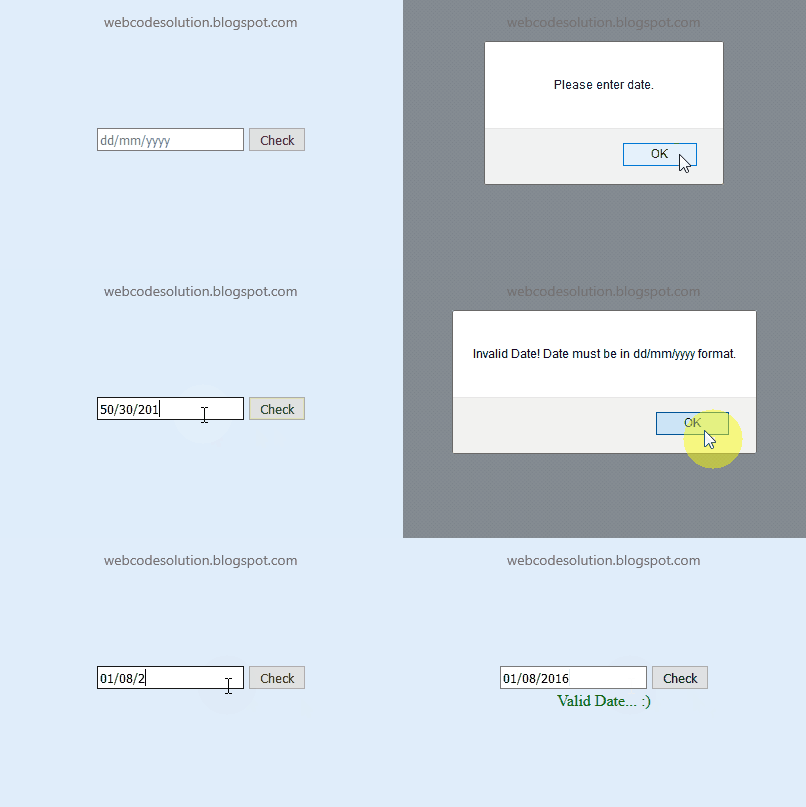
When the 'Check' button is clicked then the isValidDate() function will be called. If the input date doesn't match the regular expression then an error message is displayed and stop the form from submitting by returning a false value.

Result:
Javascript-Date-Validation-Format-Regular-Eexpression-JQuery


Live Demo:


July 27, 2016

Email Validation in Javascript

Here I will show you how to validate the Email Id using JavaScript or jquery.

First, we take a input text and a input button in body as show in below-

HTML:
<body>
<input id="txtEmail" type="text" placeholder="Email Id" />
<input type="button" value="Check" onclick="return validEmail('txtEmail');" />
</body>

After that, attach the jquery library link on your head part of page and write the below code in head part shown as below-

JS:
<head>
<script src="https://code.jquery.com/jquery-3.1.0.min.js" type="text/javascript"></script>
<script type="text/javascript">
    function validEmail(id) {
        if ($('#' + id).val() != "") {
            if (/^([\w-]+(?:\.[\w-]+)*)@((?:[\w-]+\.)*\w[\w-]{0,66})\.([a-z]{2,6}(?:\.[a-z]{2})?)$/i.test($('#' + id).val())) {
                alert("Valid email id!");
                return true;
            }
            else {
                alert("Invalid email id, Please enter again!");
                $('#' + id).val('');
                $('#' + id).focus();
            }
        }
        else {
            alert("Please enter email id!");
        }
        return false;
    }
</script>
</head>

Now save the file and run on browser.

when the 'Check' button is clicked then the validEmail() function will be called. It check first text is empty or not, if textbox is empty then show the message 'Please enter email id!' otherwise check the email id and show the message(validate or not).


Result:
Email-validation-in-javascript-or-jquery


Live Demo:


Subscribe for Latest Update

Popular Posts