Improve your skills

August 29, 2016

Remove Special Characters From String Using Regular Expression (Regex) in JavaScript


In this article, we discuss about how to remove special characters (like !, #, $, %,  >, ?, :, #,@ etc.) from string in jQuery/JavaScript using Regular Expression (Regex). 

First, we take a input text or textarea and a input button in body as show in below-

HTML:
<body style="background: #E0EDFA; text-align: center; margin-top: 250px;">
<form id="form1">
<h1>Remove Special Characters From String Using Regular Expression (Regex) in JavaScript</h1>
<textarea id="txtString" rows="5" cols="50" placeholder=" write your text here"></textarea><br />
<input id="btnRemoveSpecialCharacter" type="button" value="Remove Special Characters" onclick="getSpeCharFreeText();" />
</form>
</body>

After that, attach the jquery library link and write the below javascript code in head part as shown below-

JS:
<head>
<script src="https://code.jquery.com/jquery-3.1.0.min.js" type="text/javascript"></script>
    <script type="text/javascript">

        function getSpeCharFreeText(id) {
            var txtString = $('#txtString').val().trim();
            var regExpr = /[^a-zA-Z0-9-. ]/g;
            var str = txtString.replace(regExpr, '')
            $('#txtString').val(str);
        }

    </script>
</head>

Now save the file and run on browser.

After write string (containing special characters) in textarea, click on 'Remove Special Characters' button. Then all the special characters(!, #, $, %,  >, ?, :, #,@ etc.) are removed and simple text content visible on the textarea.

Result:
Remove Special Characters From String Using Regular Expression (Regex) in JavaScript


Live Demo:


August 23, 2016

Remove all HTML Tags from a string in jQuery using Regular Expression (Regex)


In this article, we discuss about how to remove or strip all HTML tags or elements in jQuery/JavaScript using Regular Expression (Regex). 

It means, if we pass "<span style='testStyle'> test string </span>" string to the function. Then the function return only simple text between tags "test string".
Note: It also works, if sting contains &nbsp; . 


Example:
Input String:
<div class="text-note note">
<p style='color:green;'>A JavaScript string simply stores a series of characters.</p>
<p>Please don't create strings as objects. It slows down execution speed of web page.<br>
The <strong>new</strong> keyword complicates the code. This can produce some unexpected results.</p>
</div>

Output String:
A JavaScript string simply stores a series of characters. 
Please don't create strings as objects. It slows down execution speed of web page. 
The  new  keyword complicates the code. This can produce some unexpected results.

Description: textContent(the DOM standard property) and innerText(non-standard) properties are not identical. For example, textContent will include text with in a <script>
element while innerText will not (in most browsers). This only affects IE<=8, which is the only major browser not support textContent. 

First, we take a input text or textarea and a input button in body as show in below-

HTML:
<body style="background: #E0EDFA; text-align: center; margin-top: 250px;">
<form id="form1">
<textarea id="txtHtmlString" rows="5" cols="50"></textarea><br />
<input id="btnRemoveHtmlTags" type="button" value="Remove All Html Tags"     onclick="getHtmlFreeText();" />
</form>
</body>

After that, attach the jquery library link on your head part of page and write the below javascript code in head part as shown below-

JS:
<head>
<script src="https://code.jquery.com/jquery-3.1.0.min.js" type="text/javascript"></script>
    <script type="text/javascript">

        function getHtmlFreeText() {
            var htmlStr = $('#txtHtmlString').val();
            htmlStr = htmlStr.split(">").join("> ").trim();
            var newDiv = document.createElement("DIV");
            newDiv.innerHTML = htmlStr;
            var simpleText = newDiv.textContent || newDiv.innerText || "";
            $('#txtHtmlString').val(simpleText);
        }

    </script>
</head>

Now save the file and run on browser.

After write HTML content on textarea, click on 'Remove All Html Tags' button. Then all the HTML tags, style, class are removed and simple text content visible on the textarea.

Result:
Strip or Remove all HTML Tags or Elements From a String in jquery Using Regular Expression


Live Demo:


August 19, 2016

Insert Multiple Rows with One Query or Statement in SQL Server


Here I will explain, many different ways to insert multiple rows with single insert query or statement in SQL Server with example. 

There are most three different methods describe as shown below-

First of all we create a test table (Here my table name is 'tblStudent').


-- create test table 'tblStudent'
CREATE TABLE tblStudent(RollNo INT, Name VARCHAR(100))


Method-1: INSERT Statement
The SQL Server (Transact-SQL) INSERT statement is used to insert a single record or multiple records into a table in SQL Server.

Syntax:
INSERT INTO table
(column1, column2)
VALUES
(expression1, expression2),
(expression1, expression2)

Example:
-- insert multiple rows using INSERT statement
INSERT INTO tblStudent
(RollNo, Name)
VALUES
(100101, 'Harry'),
(100102, 'Michale'),
(100103, 'John'),
(100104, 'Smith')


Method-2: INSERT SELECT Statement

Syntax:
INSERT INTO table1(column1, column2)
SELECT column1, column2 FROM table2

Example:
-- insert multiple rows using INSERT SELECT statement
INSERT INTO tblStudent(RollNo, Name)
SELECT EmpId, EmpName FROM tblEmployee


Method-3: INSERT SELECT UNION ALL Statement

Syntax:
INSERT INTO table(column1, column2)
SELECT expression1, expression2
UNION ALL
SELECT expression1, expression2
UNION ALL
SELECT expression1, expression2

Example:
-- insert multiple rows using INSERT SELECT UNION ALL statement
INSERT INTO tblStudent(RollNo, Name)
SELECT 100101, 'Harry'
UNION ALL
SELECT 100102, 'Michale'
UNION ALL
SELECT 100103, 'John'
UNION ALL
SELECT 100104, 'Smith'


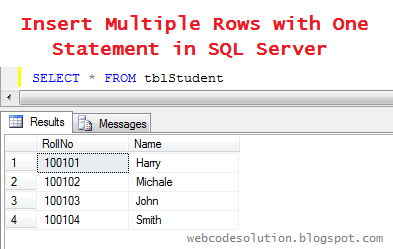
After that, When we run following query in SQL Query window it will return all inserted records with single query like as shown below- 


Result:
-- view all insert data from test table
SELECT * FROM tblStudent

insert-multiple-rows-with-one-query-or-statement-in-sql-server


August 12, 2016

Add Row Number in SQL Select Query Without Using ROW_NUMBER()


This article explain, how we can add sequence row number to a SQL select query starting from 1 onward without using ROW_NUMBER(). 

Following example describe all process step by step in easy way.

Example-

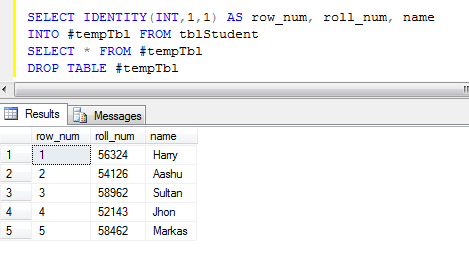
First of all we create a test table and assign some dummy data (Here my table name is 'tblStudent') as below-
how-to-add-row-number-without-using-row-number-function-in-sql-server


Write and run following query in SQL Query window.

-- insert data into a temp table '#tempTbl' with a new identity(1,1) column
SELECT IDENTITY(INT,1,1) AS row_num, name 
INTO #tempTbl FROM tblStudent

-- select all data from temp table
SELECT * FROM #tempTbl

-- drop temp table after getting final result
DROP TABLE #tempTbl


Result:
how-to-set-row-number-in-select-query-in-sql-server


August 05, 2016

Show or Hide Password on Checkbox click in jQuery


In this article, I will explain how to Show or Hide TextBox Password when the "Show Password" CheckBox is checked using jQuery without using any additional jQuery plugin.

The "Show Password" feature allows user to view and verify their password during logging or registration into the website.

First, place a input password textbox, a span element to contain password and a checkbox to show password when it checked into your body part of html as shown below-

HTML:
<body style="background: #E0EDFA; text-align: center; margin-top: 250px;">
    <form id="form1">
        <input id="txtPass" type="password" placeholder="Password" /><br />
        <span id="lblPass" style="color:green;"></span><br />
        <input id="chkShowHidePass" type="checkbox" /> Show Password
    </form>
</body>

After that, attach the jquery library link on your head part of page and write the below code in head part shown as below-

JS:
<head>
<script src="https://code.jquery.com/jquery-3.1.0.min.js" type="text/javascript"></script>
    <script type="text/javascript">
        $(document).ready(function () {
            $('#txtPass').keyup(function () {
                if ($('#chkShowHidePass').prop('checked')) {
                    $('#lblPass').html($(this).val());
                    $('#lblPass').show();
                }
                else {
                    $('#lblPass').hide();
                }
            });
            $('#chkShowHidePass').change(function () {
                if ($(this).prop('checked')) {
                    $('#lblPass').html($('#txtPass').val());
                    $('#lblPass').show();
                }
                else {
                    $('#lblPass').hide();
                }
            });
        });
    </script>
</head>

Now save the file and run on browser.

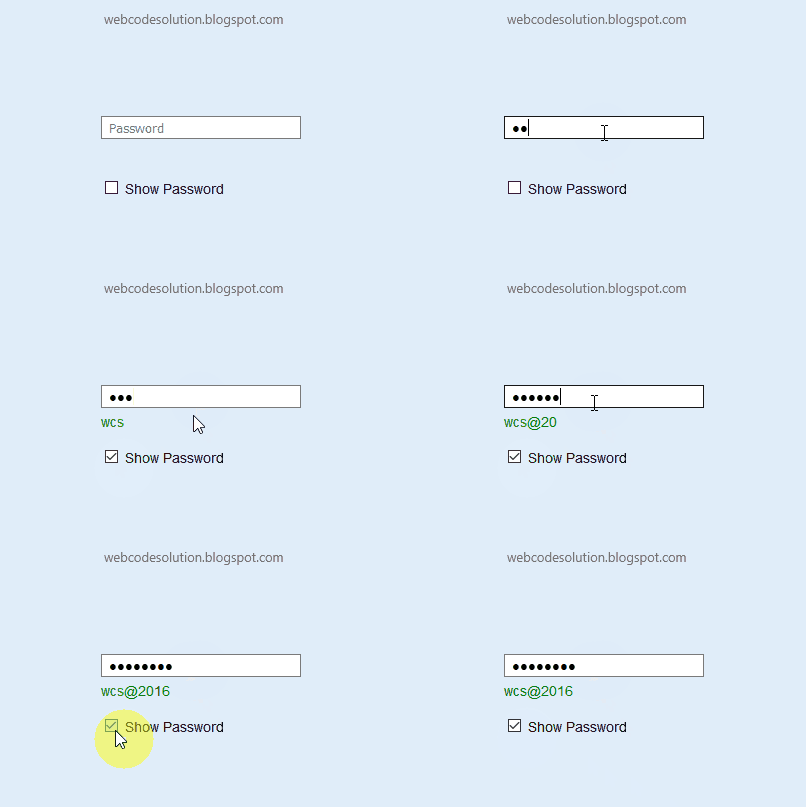
when the checkbox is checked then it will show the password typed in the password textbox. and when the checkbox is unchecked it will hide password.

Result:
Show-or-Hide-Password-on-Checkbox-click-in-jQuery-or-javascript


Live Demo:


Show Password


August 03, 2016

Javascript Date Validation dd/mm/yyyy Format Regular Eexpression JQuery


Sometimes we want to validate date in dd/mm/yyyy format. For validate date, we use regular expression that simply checks whether the input date is valid or not. 

First, we take a input text and a input button in body as show in below-

HTML:
<body>
    <form id="form1">
        <input id="txtDate" type="text" placeholder="dd/mm/yyyy" />
        <input type="button" value="Check" onclick="isValidDate('txtDate');" /><br/>
        <span id="msg" style="color:green;"></span>
    </form>
</body>

After that, attach the jquery library link on your head part of page and write the below javascript code in head part shown as below-

JS:
<head>
    <title>Javascript Date Validation dd/mm/yyyy Format Regular Eexpression JQuery</title>
    <script src="https://code.jquery.com/jquery-3.1.0.min.js" type="text/javascript"></script>
    <script type="text/javascript">

        function isValidDate(txtId) {
            $('#msg').html('');
            var txtDate = $('#' + txtId).val().trim();
            if (txtDate != '') {
                var date_regex = /^(0[1-9]|1\d|2\d|3[01])\/(0[1-9]|1[0-2])\/(19|20)\d{2}$/;
                if (!(date_regex.test(txtDate))) {
                    alert('Invalid Date! Date must be in dd/mm/yyyy format.');
                    $('#' + txtId).val('');
                    $('#' + txtId).focus();
                    return false;
                }
                else {
                    $('#msg').html('Valid Date... :)');
                }
            }
            else {
                alert('Please enter date.');
            }
            return true;
        }

    </script>
</head>

Now save the file and run on browser.

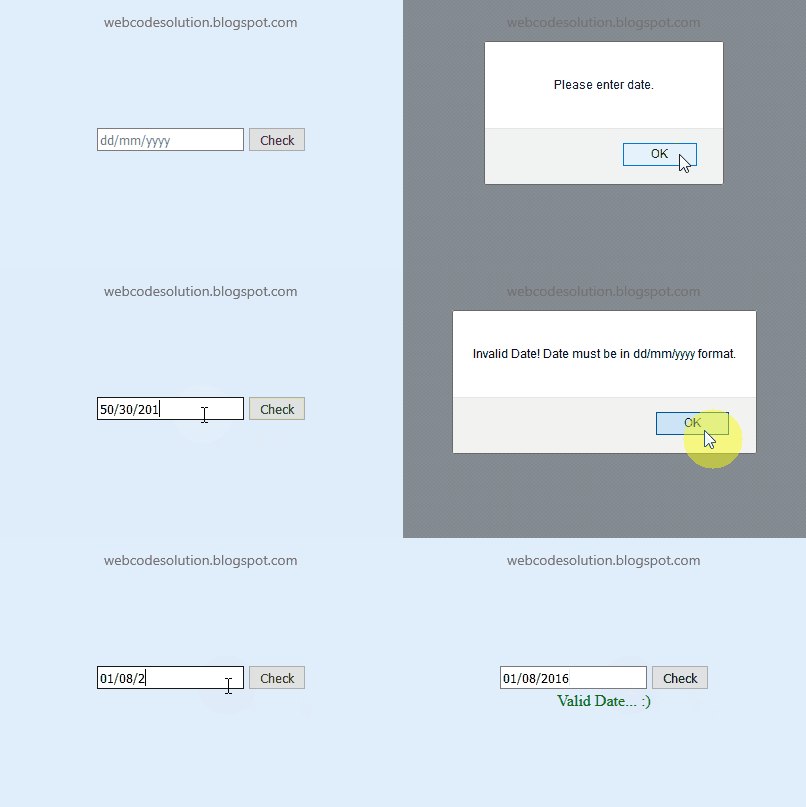
When the 'Check' button is clicked then the isValidDate() function will be called. If the input date doesn't match the regular expression then an error message is displayed and stop the form from submitting by returning a false value.

Result:
Javascript-Date-Validation-Format-Regular-Eexpression-JQuery


Live Demo:


July 30, 2016

SQL Server – Insert Data From One Table to Another Table


There are two ways to insert data from one table to another table.


1. INSERT INTO SELECT  statement-

The INSERT INTO SELECT statement is used to copy data from one table and insert into another table.
  • It is used when the table is already created in the database.
  • If columns listed in insert clause and select clause are same then not required to list them in the query but if you are listed them, it's easy to understand.
We can also use WHERE condition in query to filter data from table.

Syntax:
-- for copy all columns from one table to another
INSERT INTO table1 
SELECT * FROM table2
Note: Number of columns must be same in both tables.

-- for copy selected columns from one table to another
INSERT INTO table1(COLUMN1, COLUMN2)
SELECT COLUMN1, COLUMN2 FROM table2

Example:
-- create new table 'tblStudent'
CREATE TABLE tblStudent(first_name nvarchar(100), last_name nvarchar(100))

-- insert data in to 'tblStudent' table from table 'tblPerson'
INSERT INTO tblStudent(first_name, last_name)
SELECT firstName, lastName FROM tblPerson WHERE profession = 'student'

-- check data is inserted in 'tblStudent' table
SELECT first_name, last_name FROM tblStudent


2. SELECT INTO statement-

The SELECT INTO statement first create table and then select data from one table and insert it into the another table.
  • This method is used when the table is not created in the database and needs to be created when data inserted from another table. The new table is created with the same column name and data types as selected columns.
Syntax: 
SELECT COLUMN1, COLUMN2 INTO table1 FROM table2

Example:
-- create new table 'tblStudent' and insert data from table 'tblPerson'
SELECT firstName, lastName INTO tblStudent FROM tblPerson WHERE profession = 'student'

-- check data is inserted in 'tblStudent' table
SELECT first_name, last_name FROM tblStudent

Result:
How-to-insert-or-copy-data-from-one-table-to-another-table-in-sql-server


July 27, 2016

Email Validation in Javascript

Here I will show you how to validate the Email Id using JavaScript or jquery.

First, we take a input text and a input button in body as show in below-

HTML:
<body>
<input id="txtEmail" type="text" placeholder="Email Id" />
<input type="button" value="Check" onclick="return validEmail('txtEmail');" />
</body>

After that, attach the jquery library link on your head part of page and write the below code in head part shown as below-

JS:
<head>
<script src="https://code.jquery.com/jquery-3.1.0.min.js" type="text/javascript"></script>
<script type="text/javascript">
    function validEmail(id) {
        if ($('#' + id).val() != "") {
            if (/^([\w-]+(?:\.[\w-]+)*)@((?:[\w-]+\.)*\w[\w-]{0,66})\.([a-z]{2,6}(?:\.[a-z]{2})?)$/i.test($('#' + id).val())) {
                alert("Valid email id!");
                return true;
            }
            else {
                alert("Invalid email id, Please enter again!");
                $('#' + id).val('');
                $('#' + id).focus();
            }
        }
        else {
            alert("Please enter email id!");
        }
        return false;
    }
</script>
</head>

Now save the file and run on browser.

when the 'Check' button is clicked then the validEmail() function will be called. It check first text is empty or not, if textbox is empty then show the message 'Please enter email id!' otherwise check the email id and show the message(validate or not).


Result:
Email-validation-in-javascript-or-jquery


Live Demo:


July 22, 2016

Get Maximum Value of a Column in SQL Server

The MAX() function is return the maximum value of a column in sql server.

Syntax- 
SELECT MAX(COLUMN_NAME) FROM TABLE_NAME

Example-
Let we have a table 'tblStudents' which have the following data as shown below-


get-max-value-of-a-column-in-sql-server


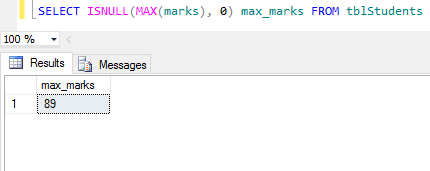
Now we use MAX() function to get maximum marks from table.

SELECT ISNULL(MAX(marks), 0) max_marks FROM tblStudents 

Result-


Note- 
If our table have no records then it returns 'NULL'. To avoid this problem we use ISNULL() function, then it returns the '0' in place of 'NULL'.


July 14, 2016

Change color image to black and white image on hover using CSS

By using grayscale property of css3 we can change the color of image to black and white (100% gray).

Grayscale property apply a shade of grey on our images. The value can be either decimal or percentage. 100% or 1.0 will make the image full greyscaled, 0% or 0 will add no effect to the image.

This effect can be applied by using few lines of code which are written below-

<html xmlns="http://www.w3.org/1999/xhtml">
<head>
<title>Change color image to black and white image on hover using CSS</title>
<style type="text/css">
.block img {
height: 250px;
width: 250px;
border: 1px solid #000;
cursor: pointer;
-moz-transition: all 2s ease; /* Firefox */
-webkit-transition: all 2s ease; /* Safari and Chrome */
-ms-transition: all 2s ease; /* IE 9 */
-o-transition: all 2s ease; /* Opera */
 transition: all 2s ease;
}
.block:hover img {
-moz-filter: grayscale(100%); /* Firefox */
-webkit-filter: grayscale(100%); /* Safari and Chrome */
-ms-filter: grayscale(100%); /* IE 9 */
-o-filter: grayscale(100%); /* Opera */
filter: grayscale(100%);
}
</style>
</head>
<body>
<form id="form1">
 <div class="block">
<img src="Images/guitar.jpg" alt="Change color image to black and white image on hover using CSS">
</div>
</form>
</body>
</html>

The result will be shown as below-


Change-color-image-to-black-and-white-image-on-mouse-hover-using-css


Subscribe for Latest Update

Popular Posts