Improve your skills

September 14, 2016

Add Simple Auto Complete Search to Input Box like Google using JQuery UI


In this tutorial, we learn how to implement auto-complete search textbox like google using jQuery UI. We can easily display a list of suggestions from the beginning of the word typed in a text box. Auto-complete prevents the user from having to enter an entire word or a set of words.

Here we have implemented a basic autocomplete with a local array as its data source. The source option is mandatory to which we are specifying a local array of strings. Once the user starting to enter country name, the auto suggested countries would be listed under the textbox. These auto suggested countries would be fetched from the list of the countries defined in our array.

First, we declare a input text box in <body> element as show in below-

HTML:
<body>
    <form>
        <input id="txtSearch" type="text" placeholder="Search Country" /><br/>
        <span id="lblMsg" style="color:green;"></span>
    </form>
</body>

After that, attach the jQuery library and jQuery UI link on your <head> part of page and write the below javascript code in head part shown as below-

JS:
<head>
<title>Add Simple Autocomplete Search to input box using jQuery UI</title>

<!-- Load jQuery, jQuery UI and jQuery ui styles from jQuery website -->
<link rel="stylesheet" href="http://code.jquery.com/ui/1.10.3/themes/smoothness/jquery-ui.css" />
<script src="http://code.jquery.com/jquery-1.9.1.js"></script>
<script src="http://code.jquery.com/ui/1.10.3/jquery-ui.js"></script>

<script type="text/javascript">

/* list of array of countries as its local data source*/
var data = ["Afghanistan", "Australia", "Bangladesh", "Canada", "China", "France", "Germany", "India", "Indonesia", "Iran", "Italy", "Japan", "Nepal", "New Zealand", "Pakistan", "Russia", "Saudi Arabia", "Sri Lanka", "United Arab Emirates", "United Kingdom", "Zimbabwe"];

$(document).ready( function () {
/* binding the text box with the jQuery Auto complete function. */
$("#txtSearch").autocomplete({
/*source refers to the list of countries that are available in the auto complete list. */
source:data,
autoFocus:true,
/*call this function after select value from autocomplete suggestions */
select: function (event, ui) {
$("#lblMsg").html("You selected: " + ui.item.label);
},
/*minLength defines, minimum character in textbox to show suggestions */
minLength: 0,
/*show autocomplete suggestions list on textbox focus.  */
}).focus(function () {
$(this).autocomplete("search", "");
});
});

</script>
</head>

Now, save and run the file in browser and when we start typing the first alphabet, it is matched against a list of the countries defined in our array and the matches get displayed in a drop-down menu attached to the textbox.

Result:


Live Demo (Try it):


If you like this, please share with your friends...


September 08, 2016

How to Disable Resizeable Property of Textarea


Normally whenever we use textarea in pages, the browser allows the user to resize it, but sometimes this is not required (as it affect the other part of the design).

So, In this article I will explain how to disable or prevent users from resizing the textarea element in browsers like Google Chrome, Mozilla Firefox and Apple Safari.

Note: By default, <textarea> elements are resizeable as shown below-.


----: Old Method :-----
In the old method, we need to set the value of the CSS property shown as below-
textarea { 
    width:400px; 
    max-width:400px; 
    height:300px; 
    max-height:300px; 
}
we set max-height/max-width same as height/width.
Example-

This method works well, but we still see "resize" icon in corner.

-----: New CSS3 Method :-----
We can use the CSS3 resize property to remove or disable the default horizontal and vertical resizeable property of the HTML <textarea> element. 

This property will also hide the resizing handle at the bottom-right corner of the textarea.
textarea {  
    resize:none;
}
Example-

Note: The resize property applies to elements whose overflow property value is something other than "visible".


-----: Optional / Conditional Resizing :-----

For enabling only the horizontal resizing, we can replace the none with horizontal.
textarea {  
    resize:horizontal;
}
Example-


Similarly for enabling only the vertical resizing, we can replace the none with vertical.
textarea {  
    resize:vertical;
}
Example-


September 03, 2016

How to Check weather a checkbox is checked or not using JavaScript or jQuery


Here I will explained with an example and live demo, How to check whether a CheckBox is checked (selected) or unchecked (not selected) using JavaScript or jQuery.

Description:

The checked property indicates whether a checkbox is checked or not. If a checkbox is selected, the value of checked property is true otherwise it is false.

----: Using JavaScript :-----

The following code consists an HTML CheckBox and a Button. When the Button is clicked, a click event handler is executed which first references the CheckBox using its ID and then based on whether it is checked or unchecked, displays a JavaScript alert message box.

Example-
<html> 
<head> 
    <script type="text/javascript"> 
        function Check() {
            var chkGraduate = document.getElementById("chkGraduate");
            if (chkGraduate.checked) {
                alert("CheckBox checked.");
            } else {
                alert("CheckBox not checked.");
            }
        } 
    </script> 
</head>
<body style="background: #E0EDFA;">
    <form id="form1">
        <input id="chkGraduate" type="checkbox" />
        <label for="chkGraduate">Are you graduate ?</label>
        <br />
        <br />
        <input type="button" value="Check" onclick="Check();" />
    </form>
</body>
</html> 


-----: Using jQuery :-----

There are two ways to track the status of checkboxes whether it is checked or not using the jQuery :checked selector and prop() method. We explained both methods one by one with example.

(1). Using the :checked Selector -

Using the jQuery ":checked" selector, we can easily check the status of checkboxes. The ":checked" selector specifically designed for radio button and checkboxes. If the checkbox is checked then it returns "true" otherwise it returns "false".

Example-
<html> 
<head> 
    <script src="https://code.jquery.com/jquery-3.1.0.min.js" type="text/javascript"></script>
    <script type="text/javascript"> 
        function Check() {
            var isChecked = $("#chkGraduate").is(":checked");
            if (isChecked) {
                alert("CheckBox checked.");
            } else {
                alert("CheckBox not checked.");
            }
        }
    </script> 
</head>
<body style="background: #E0EDFA;">
    <form id="form1">
        <input id="chkGraduate" type="checkbox" />
        <label for="chkGraduate">Are you graduate ?</label>
        <br />
        <br />
        <input type="button" value="Check" onclick="Check();" />
    </form>
</body> 
</html> 


(2). Using the prop() Method -

The jQuery prop() method provides an simple and reliable way to check the status of checkboxes. It works perfectly in all the conditions because every checkbox has checked property which specifie its checked or unchecked status.
If the checkbox is checked then prop() Method returns "true" otherwise it returns "false".

Note: Don't confuse with the "checked" attribute of checkbox. The "checked" attribute only define the initial state, not the current state of the checkbox.

Example-
<html> 
<head> 
    <script src="https://code.jquery.com/jquery-3.1.0.min.js" type="text/javascript"></script>
    <script type="text/javascript"> 
        function Check() {
            var isChecked = $("#chkGraduate").prop("checked"); 
            if (isChecked) {
                alert("CheckBox checked.");
            } else {
                alert("CheckBox not checked.");
            } 
        } 
    </script> 
</head>
<body style="background: #E0EDFA;">
    <form id="form1">
        <input id="chkGraduate" type="checkbox" />
        <label for="chkGraduate">Are you graduate ?</label>
        <br />
        <br />
        <input type="button" value="Check" onclick="Check();" />
    </form>
</body> 
</html> 

Result:
check weather a checkbox is checked or not in jquery or javascript


Live Demo:


August 29, 2016

Remove Special Characters From String Using Regular Expression (Regex) in JavaScript


In this article, we discuss about how to remove special characters (like !, #, $, %,  >, ?, :, #,@ etc.) from string in jQuery/JavaScript using Regular Expression (Regex). 

First, we take a input text or textarea and a input button in body as show in below-

HTML:
<body style="background: #E0EDFA; text-align: center; margin-top: 250px;">
<form id="form1">
<h1>Remove Special Characters From String Using Regular Expression (Regex) in JavaScript</h1>
<textarea id="txtString" rows="5" cols="50" placeholder=" write your text here"></textarea><br />
<input id="btnRemoveSpecialCharacter" type="button" value="Remove Special Characters" onclick="getSpeCharFreeText();" />
</form>
</body>

After that, attach the jquery library link and write the below javascript code in head part as shown below-

JS:
<head>
<script src="https://code.jquery.com/jquery-3.1.0.min.js" type="text/javascript"></script>
    <script type="text/javascript">

        function getSpeCharFreeText(id) {
            var txtString = $('#txtString').val().trim();
            var regExpr = /[^a-zA-Z0-9-. ]/g;
            var str = txtString.replace(regExpr, '')
            $('#txtString').val(str);
        }

    </script>
</head>

Now save the file and run on browser.

After write string (containing special characters) in textarea, click on 'Remove Special Characters' button. Then all the special characters(!, #, $, %,  >, ?, :, #,@ etc.) are removed and simple text content visible on the textarea.

Result:
Remove Special Characters From String Using Regular Expression (Regex) in JavaScript


Live Demo:


August 23, 2016

Remove all HTML Tags from a string in jQuery using Regular Expression (Regex)


In this article, we discuss about how to remove or strip all HTML tags or elements in jQuery/JavaScript using Regular Expression (Regex). 

It means, if we pass "<span style='testStyle'> test string </span>" string to the function. Then the function return only simple text between tags "test string".
Note: It also works, if sting contains &nbsp; . 


Example:
Input String:
<div class="text-note note">
<p style='color:green;'>A JavaScript string simply stores a series of characters.</p>
<p>Please don't create strings as objects. It slows down execution speed of web page.<br>
The <strong>new</strong> keyword complicates the code. This can produce some unexpected results.</p>
</div>

Output String:
A JavaScript string simply stores a series of characters. 
Please don't create strings as objects. It slows down execution speed of web page. 
The  new  keyword complicates the code. This can produce some unexpected results.

Description: textContent(the DOM standard property) and innerText(non-standard) properties are not identical. For example, textContent will include text with in a <script>
element while innerText will not (in most browsers). This only affects IE<=8, which is the only major browser not support textContent. 

First, we take a input text or textarea and a input button in body as show in below-

HTML:
<body style="background: #E0EDFA; text-align: center; margin-top: 250px;">
<form id="form1">
<textarea id="txtHtmlString" rows="5" cols="50"></textarea><br />
<input id="btnRemoveHtmlTags" type="button" value="Remove All Html Tags"     onclick="getHtmlFreeText();" />
</form>
</body>

After that, attach the jquery library link on your head part of page and write the below javascript code in head part as shown below-

JS:
<head>
<script src="https://code.jquery.com/jquery-3.1.0.min.js" type="text/javascript"></script>
    <script type="text/javascript">

        function getHtmlFreeText() {
            var htmlStr = $('#txtHtmlString').val();
            htmlStr = htmlStr.split(">").join("> ").trim();
            var newDiv = document.createElement("DIV");
            newDiv.innerHTML = htmlStr;
            var simpleText = newDiv.textContent || newDiv.innerText || "";
            $('#txtHtmlString').val(simpleText);
        }

    </script>
</head>

Now save the file and run on browser.

After write HTML content on textarea, click on 'Remove All Html Tags' button. Then all the HTML tags, style, class are removed and simple text content visible on the textarea.

Result:
Strip or Remove all HTML Tags or Elements From a String in jquery Using Regular Expression


Live Demo:


August 19, 2016

Insert Multiple Rows with One Query or Statement in SQL Server


Here I will explain, many different ways to insert multiple rows with single insert query or statement in SQL Server with example. 

There are most three different methods describe as shown below-

First of all we create a test table (Here my table name is 'tblStudent').


-- create test table 'tblStudent'
CREATE TABLE tblStudent(RollNo INT, Name VARCHAR(100))


Method-1: INSERT Statement
The SQL Server (Transact-SQL) INSERT statement is used to insert a single record or multiple records into a table in SQL Server.

Syntax:
INSERT INTO table
(column1, column2)
VALUES
(expression1, expression2),
(expression1, expression2)

Example:
-- insert multiple rows using INSERT statement
INSERT INTO tblStudent
(RollNo, Name)
VALUES
(100101, 'Harry'),
(100102, 'Michale'),
(100103, 'John'),
(100104, 'Smith')


Method-2: INSERT SELECT Statement

Syntax:
INSERT INTO table1(column1, column2)
SELECT column1, column2 FROM table2

Example:
-- insert multiple rows using INSERT SELECT statement
INSERT INTO tblStudent(RollNo, Name)
SELECT EmpId, EmpName FROM tblEmployee


Method-3: INSERT SELECT UNION ALL Statement

Syntax:
INSERT INTO table(column1, column2)
SELECT expression1, expression2
UNION ALL
SELECT expression1, expression2
UNION ALL
SELECT expression1, expression2

Example:
-- insert multiple rows using INSERT SELECT UNION ALL statement
INSERT INTO tblStudent(RollNo, Name)
SELECT 100101, 'Harry'
UNION ALL
SELECT 100102, 'Michale'
UNION ALL
SELECT 100103, 'John'
UNION ALL
SELECT 100104, 'Smith'


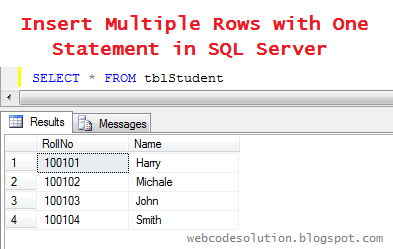
After that, When we run following query in SQL Query window it will return all inserted records with single query like as shown below- 


Result:
-- view all insert data from test table
SELECT * FROM tblStudent

insert-multiple-rows-with-one-query-or-statement-in-sql-server


August 12, 2016

Add Row Number in SQL Select Query Without Using ROW_NUMBER()


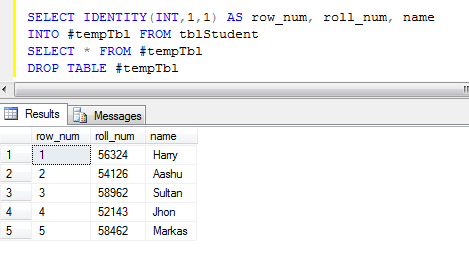
This article explain, how we can add sequence row number to a SQL select query starting from 1 onward without using ROW_NUMBER(). 

Following example describe all process step by step in easy way.

Example-

First of all we create a test table and assign some dummy data (Here my table name is 'tblStudent') as below-
how-to-add-row-number-without-using-row-number-function-in-sql-server


Write and run following query in SQL Query window.

-- insert data into a temp table '#tempTbl' with a new identity(1,1) column
SELECT IDENTITY(INT,1,1) AS row_num, name 
INTO #tempTbl FROM tblStudent

-- select all data from temp table
SELECT * FROM #tempTbl

-- drop temp table after getting final result
DROP TABLE #tempTbl


Result:
how-to-set-row-number-in-select-query-in-sql-server


August 05, 2016

Show or Hide Password on Checkbox click in jQuery


In this article, I will explain how to Show or Hide TextBox Password when the "Show Password" CheckBox is checked using jQuery without using any additional jQuery plugin.

The "Show Password" feature allows user to view and verify their password during logging or registration into the website.

First, place a input password textbox, a span element to contain password and a checkbox to show password when it checked into your body part of html as shown below-

HTML:
<body style="background: #E0EDFA; text-align: center; margin-top: 250px;">
    <form id="form1">
        <input id="txtPass" type="password" placeholder="Password" /><br />
        <span id="lblPass" style="color:green;"></span><br />
        <input id="chkShowHidePass" type="checkbox" /> Show Password
    </form>
</body>

After that, attach the jquery library link on your head part of page and write the below code in head part shown as below-

JS:
<head>
<script src="https://code.jquery.com/jquery-3.1.0.min.js" type="text/javascript"></script>
    <script type="text/javascript">
        $(document).ready(function () {
            $('#txtPass').keyup(function () {
                if ($('#chkShowHidePass').prop('checked')) {
                    $('#lblPass').html($(this).val());
                    $('#lblPass').show();
                }
                else {
                    $('#lblPass').hide();
                }
            });
            $('#chkShowHidePass').change(function () {
                if ($(this).prop('checked')) {
                    $('#lblPass').html($('#txtPass').val());
                    $('#lblPass').show();
                }
                else {
                    $('#lblPass').hide();
                }
            });
        });
    </script>
</head>

Now save the file and run on browser.

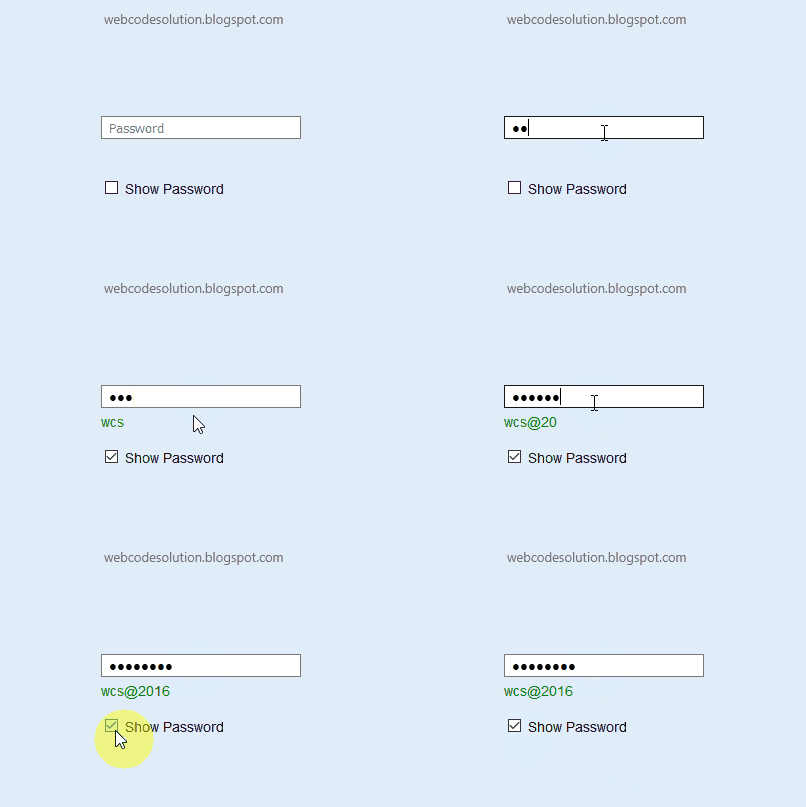
when the checkbox is checked then it will show the password typed in the password textbox. and when the checkbox is unchecked it will hide password.

Result:
Show-or-Hide-Password-on-Checkbox-click-in-jQuery-or-javascript


Live Demo:


Show Password


August 03, 2016

Javascript Date Validation dd/mm/yyyy Format Regular Eexpression JQuery


Sometimes we want to validate date in dd/mm/yyyy format. For validate date, we use regular expression that simply checks whether the input date is valid or not. 

First, we take a input text and a input button in body as show in below-

HTML:
<body>
    <form id="form1">
        <input id="txtDate" type="text" placeholder="dd/mm/yyyy" />
        <input type="button" value="Check" onclick="isValidDate('txtDate');" /><br/>
        <span id="msg" style="color:green;"></span>
    </form>
</body>

After that, attach the jquery library link on your head part of page and write the below javascript code in head part shown as below-

JS:
<head>
    <title>Javascript Date Validation dd/mm/yyyy Format Regular Eexpression JQuery</title>
    <script src="https://code.jquery.com/jquery-3.1.0.min.js" type="text/javascript"></script>
    <script type="text/javascript">

        function isValidDate(txtId) {
            $('#msg').html('');
            var txtDate = $('#' + txtId).val().trim();
            if (txtDate != '') {
                var date_regex = /^(0[1-9]|1\d|2\d|3[01])\/(0[1-9]|1[0-2])\/(19|20)\d{2}$/;
                if (!(date_regex.test(txtDate))) {
                    alert('Invalid Date! Date must be in dd/mm/yyyy format.');
                    $('#' + txtId).val('');
                    $('#' + txtId).focus();
                    return false;
                }
                else {
                    $('#msg').html('Valid Date... :)');
                }
            }
            else {
                alert('Please enter date.');
            }
            return true;
        }

    </script>
</head>

Now save the file and run on browser.

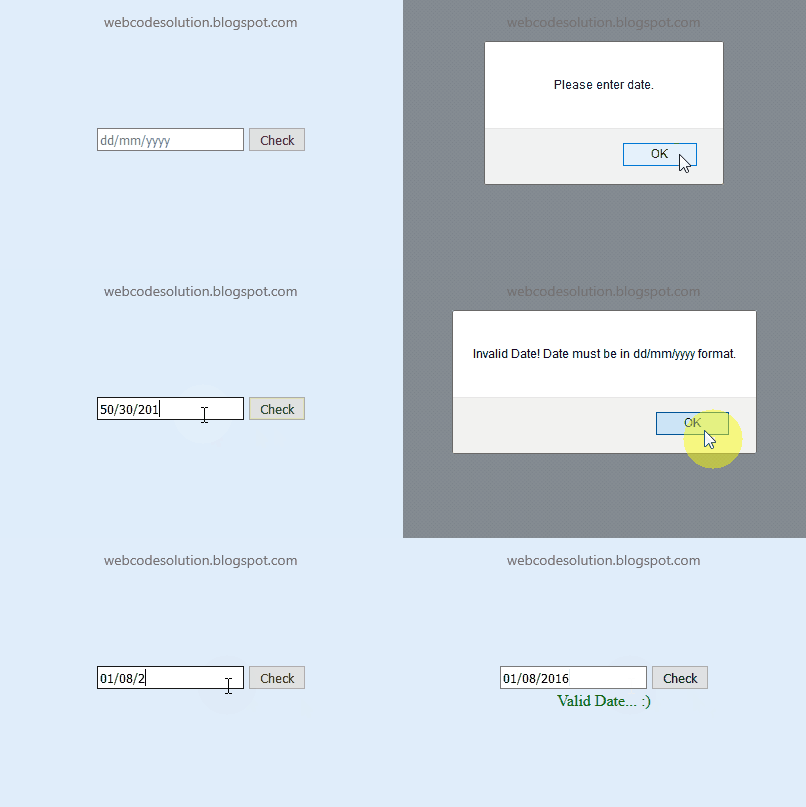
When the 'Check' button is clicked then the isValidDate() function will be called. If the input date doesn't match the regular expression then an error message is displayed and stop the form from submitting by returning a false value.

Result:
Javascript-Date-Validation-Format-Regular-Eexpression-JQuery


Live Demo:


Subscribe for Latest Update

Popular Posts